Best Software for a Small Countertop Shop
The best software for a small countertop shop is the option that handles your daily work at a cost and setup effort your team can support. Start with drawing and quoting software if estimates are the bottleneck. Compare job-management tools if approved jobs are hard to track. Consider an ERP when quotes, slabs, schedules, and financial records need to stay connected. Test each option with the same recent kitchen job.
Start With the Work That Keeps Coming Back to You
A customer changes the island size. You revise the drawing, update the price, and text the installer. Later, someone opens the old quote. In a small shop, the owner often becomes the person who checks which version is right.
Write down where that job needed another call, another spreadsheet, or another entry. Choose the first workflow to fix from those notes. A quoting tool can address an estimating problem. A shared schedule and job record address a different problem. Buying only by employee count can miss both.
Software Options to Compare for a Small Shop
Build a shortlist around the work you need the software to handle. These options cover different scopes, so compare the configuration you would actually use. The final column gives a question to test during a demo.
Option
Published Scope
Check for Your Shop
Stonify Drawing Only
Layouts, slab plans, and printable quotes.
Can you price and revise your usual kitchens using your own materials and charges?
Moraware CounterGo
Countertop drawing, slab layouts, estimating, and customer quotes.
How will approved quote details reach the people managing the job?
Easy Stone Shop Easy Job
Quotes, reports, job tracking, and scheduling. Easy Shop adds inventory and barcoding.
Which package covers your workflow, and who needs a paid user account?
Moraware Systemize
Job tracking and scheduling. CounterGo and Inventory are separate products; Inventory requires Systemize.
Price the required products together. Systemize currently has a three-user minimum.
Stonify Full ERP
Connected quoting, inventory, scheduling, and financial workflows.
Does the broader scope justify the setup work for your current jobs?
This is a starting shortlist, not an exhaustive market survey. Confirm current packages, users, pricing, and required integrations directly with each vendor.
Choose a Starting Point Your Team Can Use
When Drawing and Quoting Are the Main Need
Start here when one person estimates most jobs and the main work is turning plans into a customer quote. Test your material prices, finished edges, sink cutouts, delivery, and installation charges. A clear drawing is useful only if the quote reflects what you charge.
Check what happens after approval. If you will keep a separate calendar or accounting system, decide who transfers the job details and how they check revisions. Keep that work in the cost comparison.
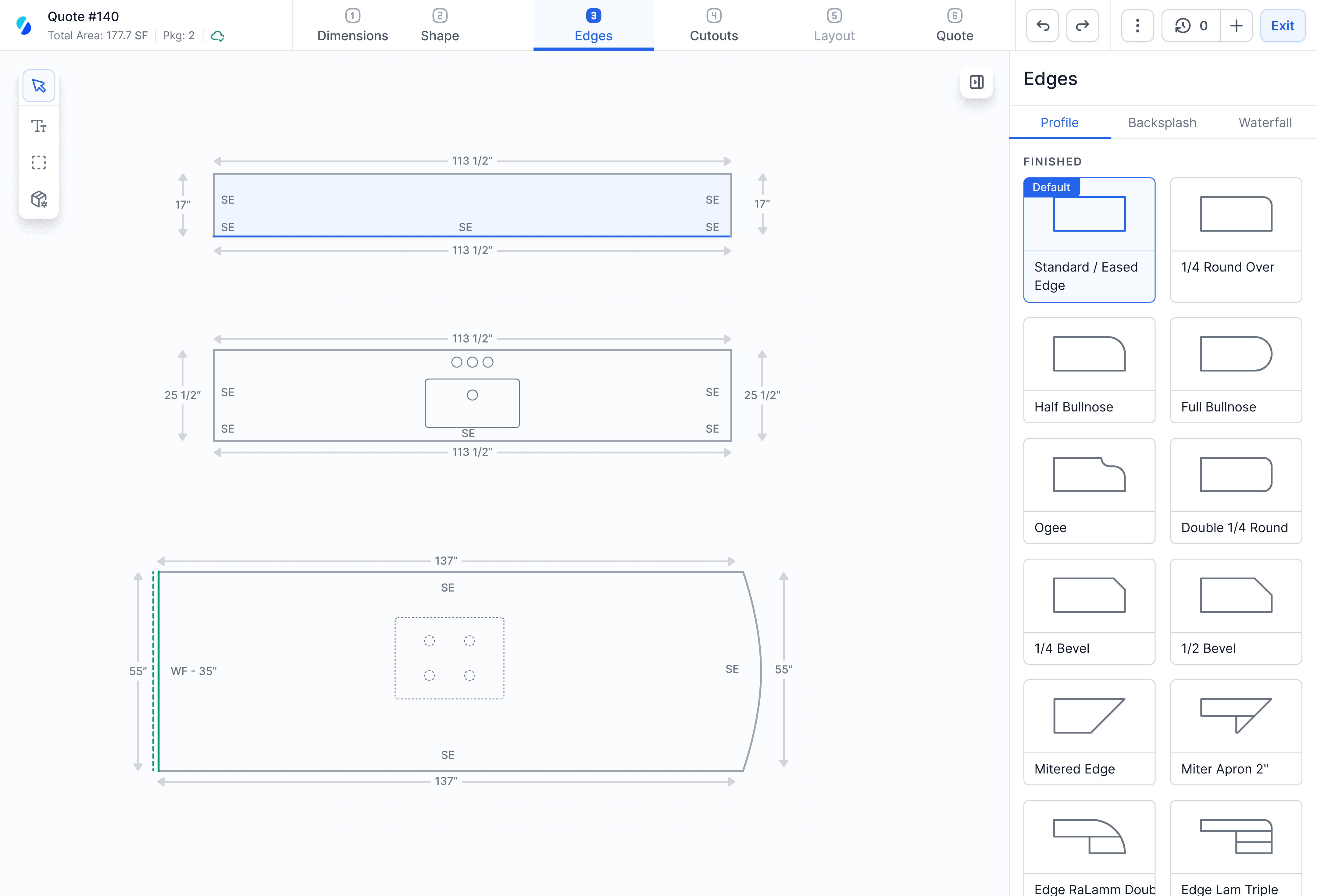
Stonify drawing example: compare how each tool handles the dimensions, cutouts, and edge details on the same kitchen.
When Approved Jobs Are Getting Lost
Include job management when people repeatedly ask which jobs are ready, who is templating tomorrow, or whether an installation moved. Have your estimator and installer find the current drawing, date, and notes without asking you.
Try the devices your team already uses. A screen that works at the office may be awkward on a phone beside the truck. Ask what remains accessible when the connection is weak.
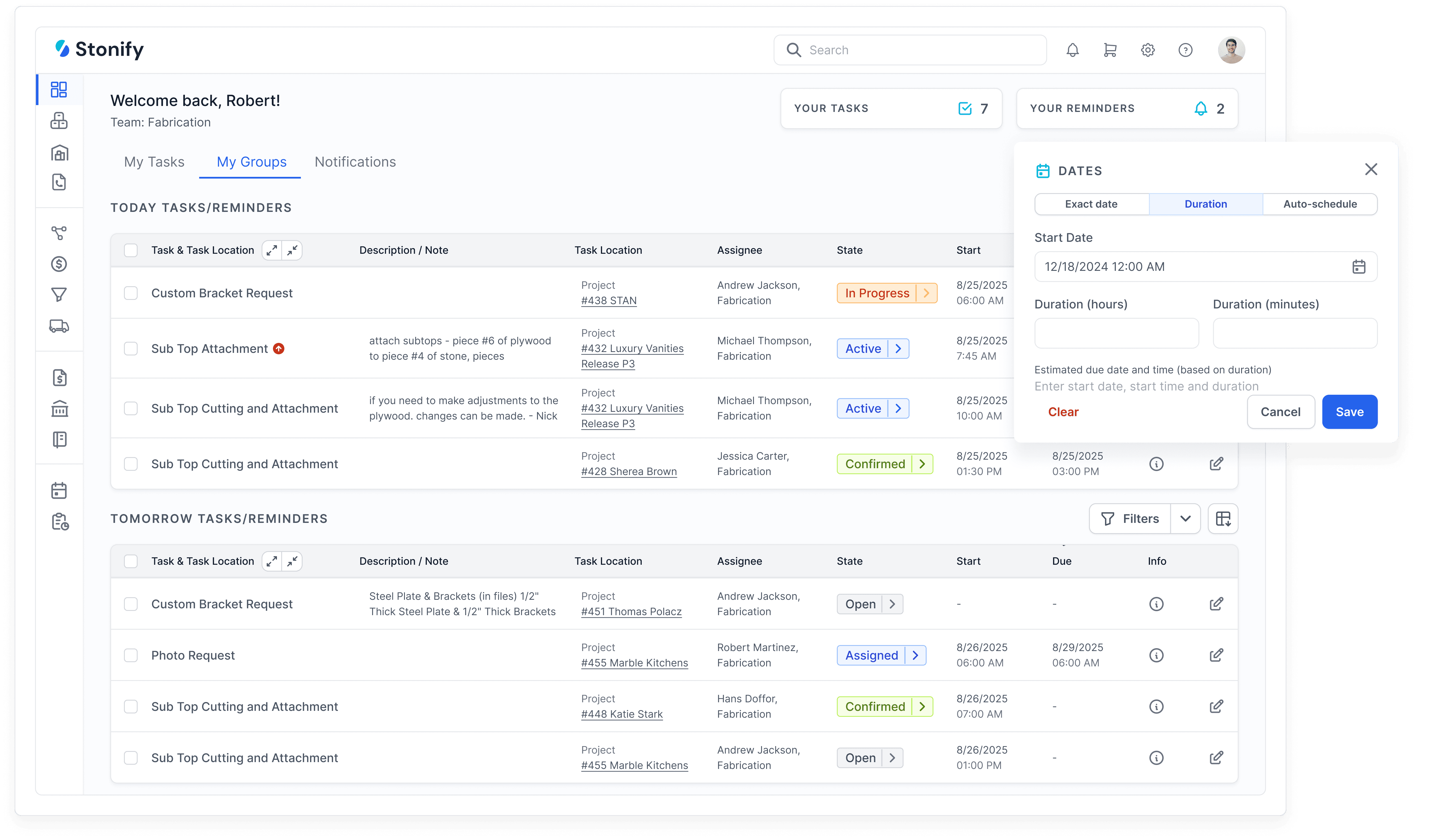
Stonify task view: use your demo to check who owns each task, its current status, and its scheduled date.
When a Small Shop Needs an ERP
An ERP connects business functions such as sales, inventory, production, and finance. A small team may need that connection when several people reserve material, change schedules, or track job costs.
Evaluate the work involved in maintaining the system, too. Assign someone to price lists, material records, and job updates. Headcount alone does not tell you whether a focused tool or a broader platform will fit.
Run a Kitchen Revision Through Each Demo
Use this sample scenario or bring a recent job of your own. Quote a kitchen with an island, a sink cutout, a finished edge, and installation. Then change the island dimensions, select another material, and move the installation date.
1. Build the Quote From Your Price List
Have the estimator enter the drawing and charges. Check square footage, edge lengths, cutouts, and the final customer quote. Compare the result with a quote your shop has already checked. Record anything the demonstrator has to calculate elsewhere.
2. Change the Job and Find the Current Version
Revise the dimensions and material. Check which quantities and prices update, what must be changed manually, and how the approved version is identified. Ask another team member to open the job and explain exactly what the customer approved.
3. Hand the Job to the Shop and Installer
For a job-management system, assign the next tasks and move the installation. Have the crew find the revised instructions. For a quoting-only tool, demonstrate the export or handoff to your existing process. Count the places someone still needs to update.
4. Check Material and Accounting Requirements
If inventory is in scope, reserve a slab and see whether another estimator can recognize that reservation. If accounting remains separate, ask your bookkeeper to verify the records that transfer, the timing, and how a failed transfer is corrected.
5. Let Your Team Repeat the Important Steps
Ask the estimator to make another revision and the installer to find the job without the demonstrator driving. Record what worked, what needed help, and what was only promised. Use those notes to agree on setup and training before signing.
Compare What Your Small Team Will Actually Pay
Request a written price for the people and tools your shop needs. Count the owner, estimator, office staff, and field users according to the vendor’s access rules. Check minimum user counts and whether quoting, inventory, or integrations require another product.
First-year cost equals 12 months of recurring charges, plus setup and migration, plus your team’s preparation and training time.
A Cost Example You Can Replace With Your Own Numbers
Hypothetical example: $200 per month × 12 months, plus $400 for setup, plus 10 staff hours at $30 per hour, equals $3,100 in first-year cost. These are illustrative figures, not vendor prices.
Use the same assumptions for every option. Time spent importing prices or training an estimator still matters when a vendor includes onboarding in the subscription.
Ask what changes when you add another estimator or installer.
Confirm training, support hours, data migration, and any paid add-ons.
Check contract length, cancellation terms, and how to export your records.
Compare work still done in spreadsheets or another paid system.
Plan the Switch Around Active Jobs
Start with a defined workflow and a few jobs your team knows well. Clean the price list, confirm who maintains it, and check the customer quote before using it for new work. If inventory is included, verify your starting material records.
Decide which system owns each active job during the transition. Keep the latest drawing, promised dates, deposits, and outstanding tasks available to the people responsible. Set a clear cutover point so the team knows where to update the next job.
Ask the vendor to show a sample import and explain how mistakes are corrected. Schedule training by role. The estimator needs to prepare and revise a quote; the installer needs to find the current instructions.
Where Stonify Fits in a Small Shop
Stonify offers Drawing Only and a Full ERP Platform. The drawing workflow covers countertop layouts, quote quantities, and slab planning. The broader platform includes inventory, scheduling, accounting, and reporting.
Shortlist Drawing Only when estimating is the immediate need. Include Full ERP when you want to evaluate connected work across the shop. Use the same kitchen revision test for Stonify and every other option, and confirm the plan, users, and setup your team would need.
If your main requirement is machine programming or a particular equipment file, bring that requirement to the demo. A drawing or shop-management description alone does not establish compatibility.
AI Assistance and 3D Countertop Drawing
Stonify connects with AI assistants to answer questions about sales, prepare reports, and turn a PDF purchase order into a draft quote. Try one of these tasks in your demo and confirm which AI workflows are available with your setup.
Stonify creates a 3D view from your existing countertop drawing, so you can walk customers through the layout without building a separate model. You can also include a link to the 3D view in the quote for customers to review.
Choose From Demonstrated Results
Choose the option that handles your must-have steps, gives your team usable job information, and has a cost and setup plan you can support. Keep the demo notes and put any remaining requirements in writing.
If the main problem is quoting, a focused tool may be enough. If the problem starts after approval, include scheduling and job tracking. If the same job keeps being re-entered across departments, evaluate a connected platform.
Official Product Sources
Product information checked October 30, 2026. Confirm current scope and commercial terms before purchasing.