Release Notes v0.6.14 (AI Connectors, QuickBooks Integration)
AI Connectors
Added early support for AI Connectors using MCP, which allows tools like Claude, Codex, and other MCP clients to connect to Stonify.
Connectors are limited to the tools you select, so an AI assistant can only access the parts of Stonify needed for a specific workflow.
The first supported use case is creating Quotes from PDF purchase orders.
We tested Claude reading a PDF PO, finding the required Stonify data, and creating a draft Quote. The available tools now support quote-related lookups such as Customers, Products, Services, Pricing Tiers, Payment Terms, Sales Taxes, Project Types, and default Product or Service pricing.
Claude can also create a Quote with a new Project and add Quote Packages with Line Items.
We are also improving a Stonify skill for Claude so it understands how quoting is structured in Stonify and can use the tools more reliably.
This is currently an early partner feature. If your company wants to test AI-assisted quoting or help shape future AI workflows in Stonify, contact us.
To test this, go to Settings > AI Connectors
QuickBooks
Added the first version of QuickBooks Online Ledger Sync.
This is designed to reduce manual accounting work by moving ledger entries between Stonify and QuickBooks Online without exporting spreadsheets or re-entering data.
In this first version, Stonify syncs Journal Entries. This means invoices, payments, bills, and other transactions stay managed in Stonify, while the accounting entries behind them can be sent to QuickBooks.
You can choose a date range and:
Push Stonify journal entries to QuickBooks
Pull QuickBooks journal entries into Stonify
Preview what will sync before confirming
Stonify remembers which accounts and journal entries are connected between the two systems, so repeated syncs do not create duplicates.
To get started, connect QuickBooks in Settings > Integrations > Connectors > QuickBooks. The Connect tab contains an explanation of how the integration works.
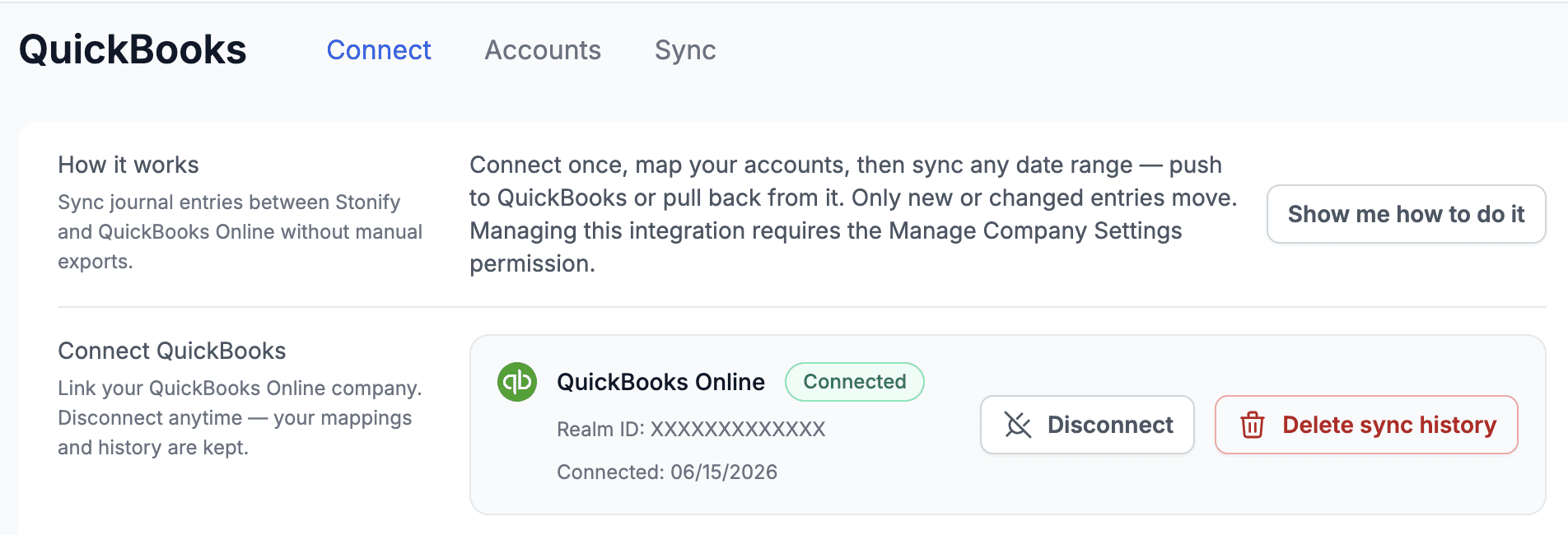
Once the connection is established, you can sync ledgers in both directions — Stonify → QuickBooks or QuickBooks → Stonify.
Every sync requires General Ledger accounts to be mapped between the two systems. In other words, Stonify needs to know that account XXX maps to account YYY in QuickBooks.
This mapping can be configured in the Accounts tab or set up as needed during the sync process.
If the sync encounters an unmapped account, it will prompt you to create the mapping.
The Sync tab is where synchronization happens. You can review previous sync runs, delete syncs, and push or pull data for a selected time period.
If a journal entry is synced from QuickBooks into Stonify, you will see Open in QuickBooks in the journal entry detail.

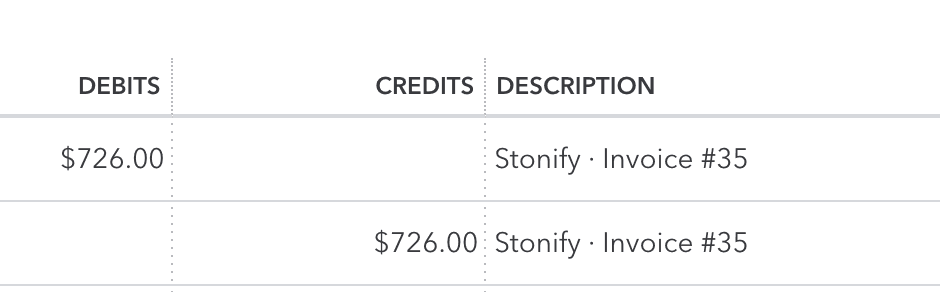
If a journal entry is synced from Stonify into QuickBooks, this is recorded in the Description field.
This is Version 1 of the QuickBooks integration. The focus is on getting ledger data flowing reliably first, and we will continue improving the workflow based on customer feedback. Contact us if you need help getting it set up.
Reports
Added a Cash Flow report, allowing you to quickly understand where cash is coming from, where it is being spent, and how your cash position changes over time.
Calendars
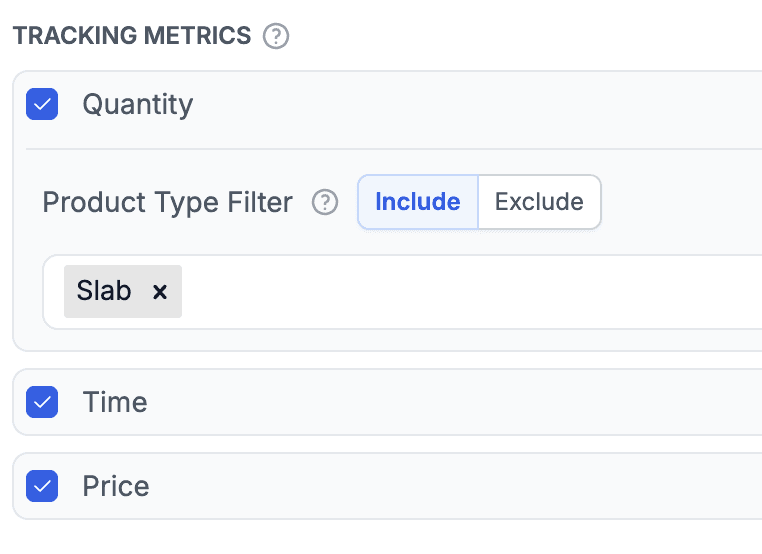
Added an option to show Project Price as a tracking metric at the top of the calendar.
Tracking Metrics can now display:
Project Price
Task Time
Square Footage (SF)
Currencies
Added support for multiple currencies.
The current version supports one currency per tenant/company.
You can configure the currency in Settings > My Company.