Release Notes v0.6.28 (3D Drawing, Sales Order Numbering, Automatic Inventory Sync)
Drawing
Added 3D rendering of the Drawing. This requires no additional work from you since it uses the existing Drawing. Just click the button in the bottom-right corner.
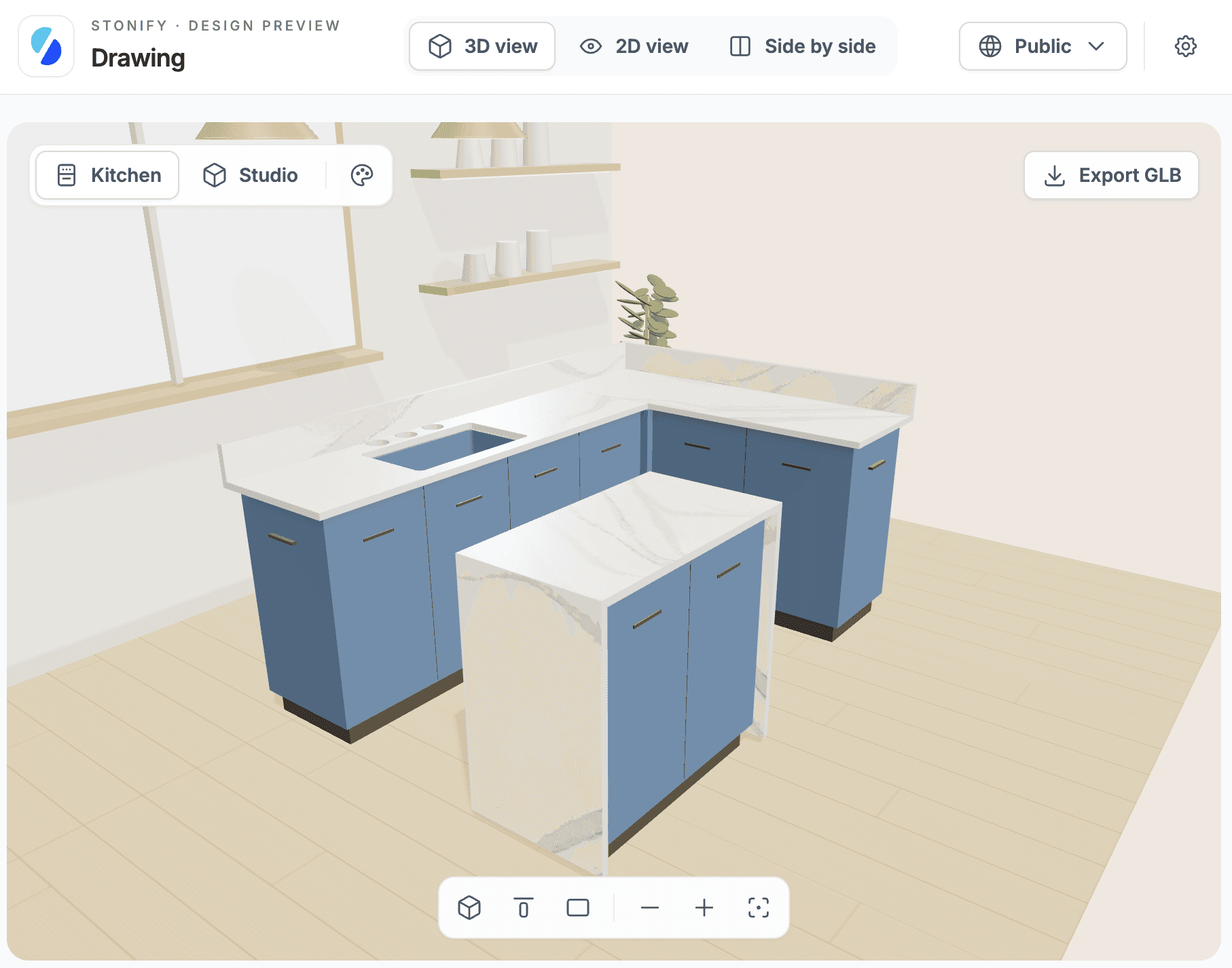
It is also possible to publish a link with the 3D rendering and send it to your customers as part of the Quote. Open the Document Template Editor and add 3D drawing link.
Finance
It is now possible to add Payments directly while creating a Financial Document. This is useful when you want to create an Invoice/Bill together with a Payment in one step.
Documents
Sales Order and Change Order IDs are now generated in the format {Project ID}-{Numeric Sequence}, where the numeric sequence starts with 1. For example, the first Sales Order for Project #100 will be #100-1, the second will be #100-2, etc.
You can now reorder templates, and they will appear in the same order in the template selection dropdown.
Added Undo and Redo buttons.
Added a Purchase Order group. You can now customize the look of your PO documents.
Logistics
Added a new permission, View All Logistics Tasks in Mobile App. Users with this permission can see all field jobs in the Logistics App. This allows supervisors or managers to see all tasks and help coordinate work on site.
You can use the filter button to show tasks for specific users only. In the next release, this filter will be updated to work like the regular filter button, including the ability to save filters - for example, to define specific crews and quickly select them.
Inventory Integrations
It is now possible to set up automatic Slabsmith/Horus synchronization of remnants. You can configure this in the Integration Settings or under the new Settings > Automatic Jobs option.
Project
Updated the components for Notes, making them more compact and allowing more information to be shown.
Added an option to bulk edit Project Custom Fields.
Roles and Permissions Settings
Added a number showing how many permissions a user has. When you click it, you can see which permissions they have and which Role grants each permission.
The Roles tab now has a View by Permission option, showing which users and Roles have a particular permission.