Release Notes v0.6.18 (Package Multipliers, Financial Document Templates, Smarter Drawing Quantities)
Drawing
It is now possible to configure how generated dependent lines calculate their quantity. Previously, generated lines always inherited the quantity from their parent. For example, if a material line used full slab quantities (60 SF), the generated Fabrication service also used 60 SF. This is now configurable, allowing the generated line to use the drawn shape quantity instead (e.g. 20 SF).
The setup below adds a Fabrication line that uses the shape area as its quantity.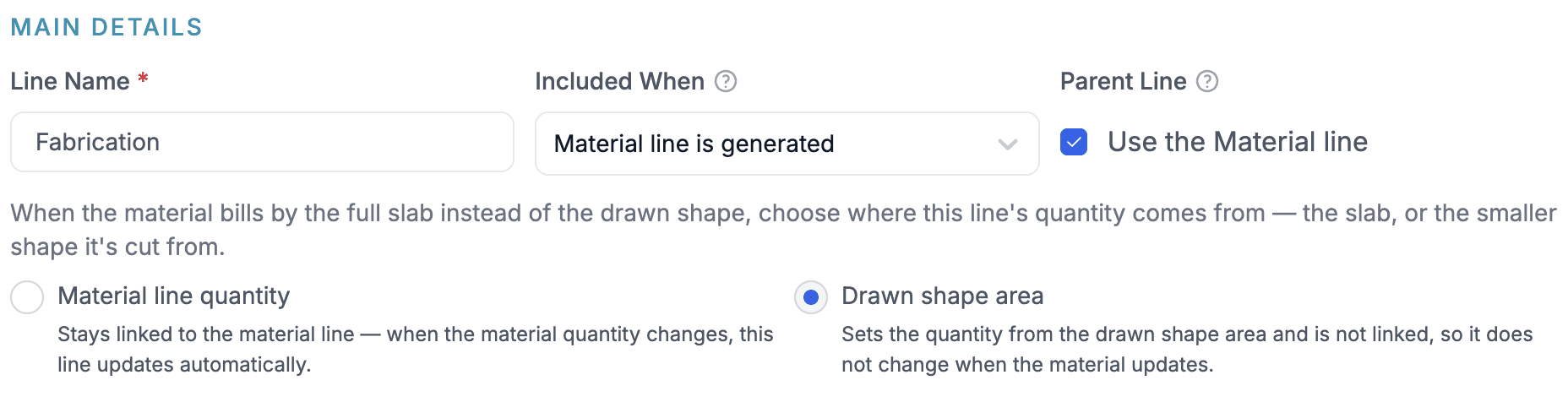
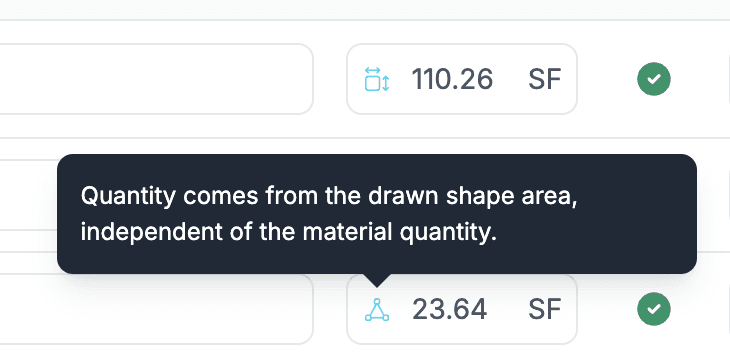
The generated Quote below uses that quantity instead of taking 110 from the Material line (which uses slab quantities). You can also see the difference in the quantity icons.
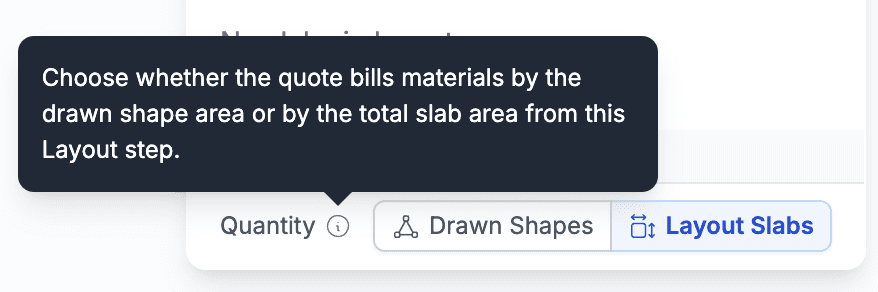
Each drawing can now individually override whether material quantities should be taken from the allocated slabs or from the drawn shapes. You can change this setting from the Layout step (calculator menu in the top-right corner) or from the Quote step (top-left toolbar).
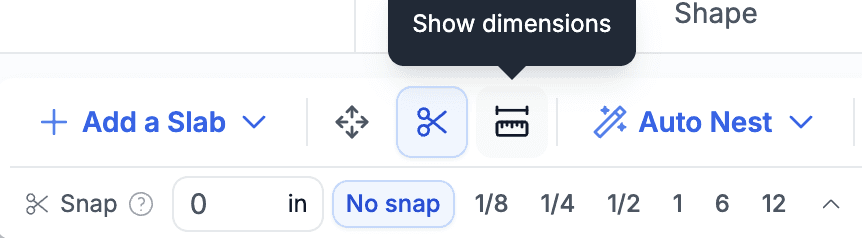
The Layout step now supports snapping and piece dimensions. When adding seams, you can configure snapping intervals (e.g. 1/8", 1", etc.), causing seams to automatically snap to the nearest interval. You can also choose whether dimensions are shown only while adding seams or for all pieces, making precise seam placement much easier.
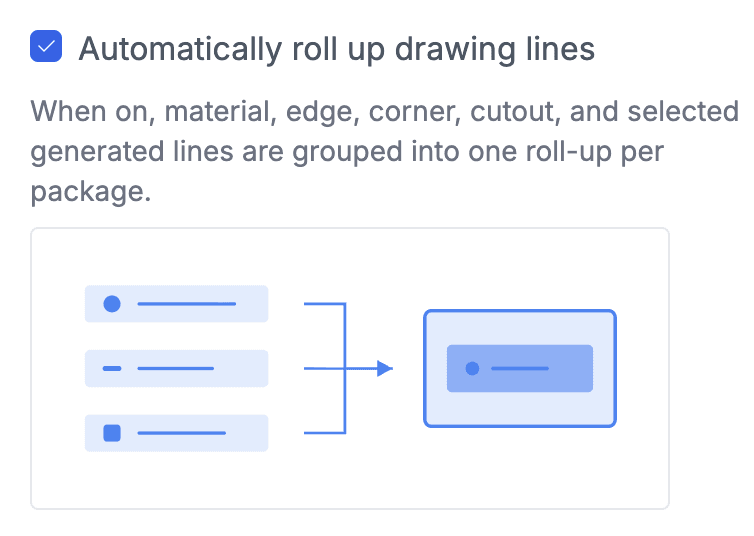
Added the ability to automatically roll up generated drawing lines. You can enable this in Drawing Settings, allowing multiple generated service lines to be combined into a single line in the Quote. Individual lines can be excluded from the rollup in their line settings if you want them to remain separate.
Financial Documents
Added new settings to define default document templates for each financial document type (Invoice, Bill, etc.).
Each document type can also define which templates are available, allowing you to offer multiple templates while selecting one as the default.
Customers, Vendors, and Suppliers can now have their own default document template. For example, your company may use Invoice Template 1 by default while specific customers automatically receive Invoice Template 2.
Default document templates can also be updated in bulk using the new Bulk Edit feature for contacts.
Contacts
Added Bulk Edit support for Contacts. Select multiple customers, vendors, or suppliers and update their properties in one operation.
Calendars
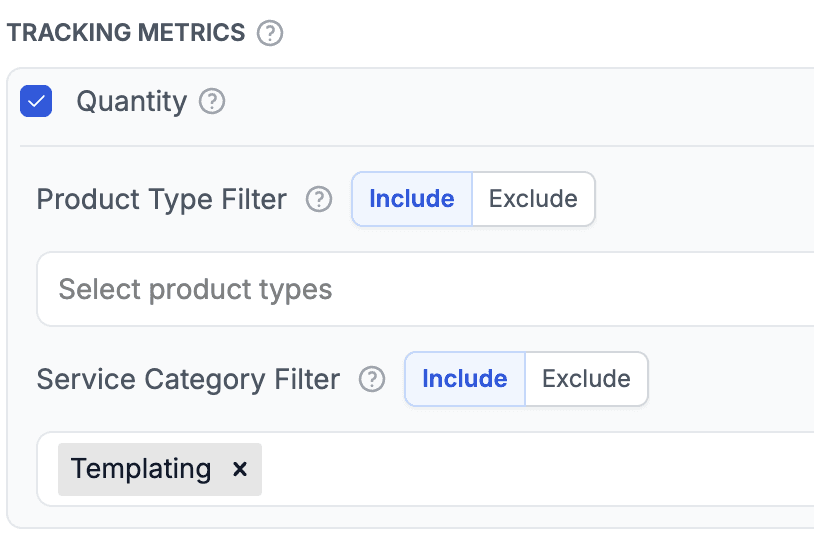
More flexible quantity tracking on calendars. Track quantities by service category as well as by product type. Non-area units, such as each and linear feet, are now counted too. The example below shows a calendar setup that tracks Templating SF.
Projects
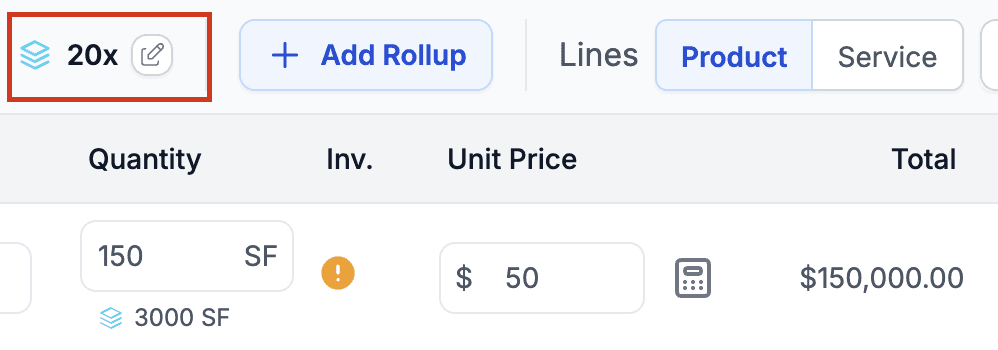
Added Package Multipliers. This allows you to multiply the quantity of an entire package instead of duplicating it.
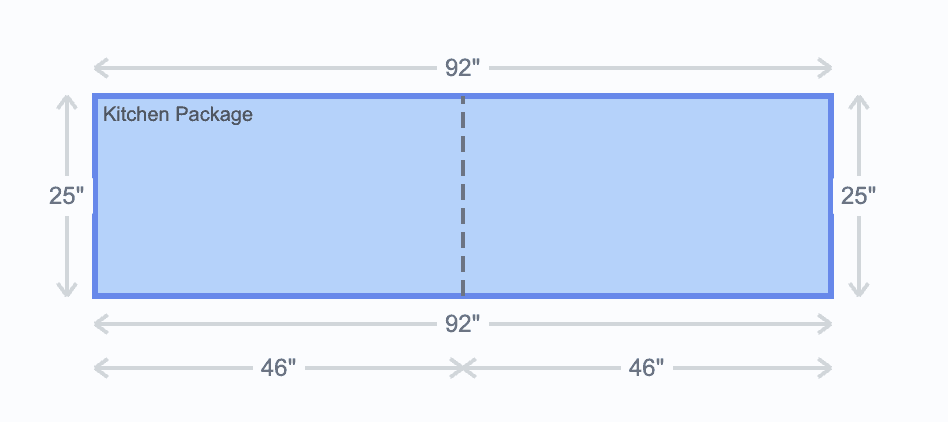
For example, you can create a Kitchen package once and set its quantity to 20, representing twenty identical kitchens without creating twenty separate packages.
To use this, click the button in the package header (see the image below) and set the multiplier.
Added a Wrap All Lines in Rollup button, allowing you to roll up an entire package with a single click.
Added Signed Sales Order and Deposit Present options to the Project filter. These make it easy to find projects that are still missing a signed Sales Order or a deposit.
Product SKUs (Variations)
Added an option to automatically name SKUs that use dropdown custom fields. Go to the Custom Field settings and select Include in Automatic SKU Title. When adding options, fill in the Abbr column. The example below shows abbreviations for the polish option.
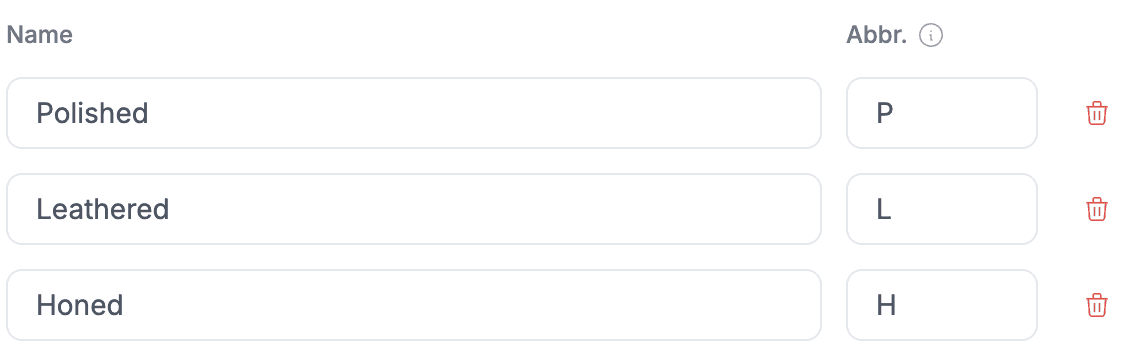
Then, set up the pattern used for automatic generation in Inventory General Settings. In our example, the pattern uses SKU, followed by the field values, with no suffix.

The example below shows how the automatic SKU name is used when a new SKU is added.
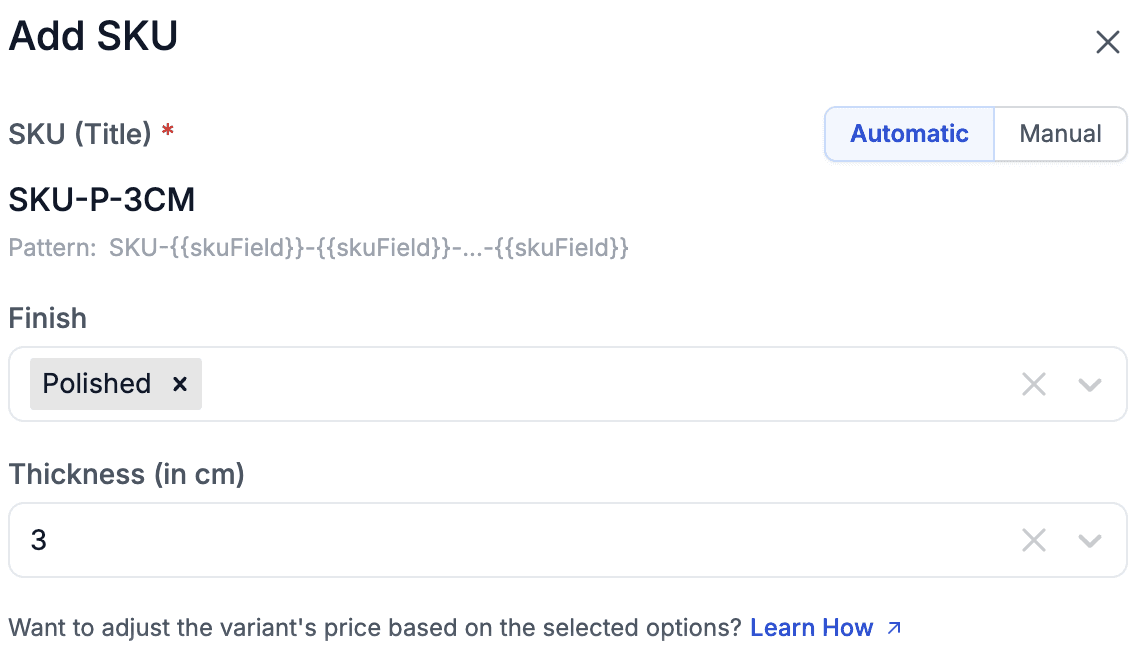
This also enables bulk creation of SKUs. You can find this as a new option in the Bulk Edit menu in the product list.
Purchase Orders
Updated the Purchase Order document with an improved design.
Purchase Orders now support an optional Billing Contact. When provided, it is included in the PO document and becomes the default billing contact for financial documents generated from that PO.
Slabsmith / Horus
Added a new Image Sync tool in the settings - click Sync Data to view inventory items within a selected date range (default is the last 5 days).
Select the inventory you want to synchronize and choose how existing images should be handled: Skip, Append, Replace
Payments
Redesigned the Payment Usage and Print Payment dialogs.
Customers
Added the ability to create a Quote directly from Customer Detail > Projects.
Logistics App
Redesigned the file upload screen with a more compact layout.
Added row and tile view modes, similar to the desktop application.
Added support for selecting and deleting multiple files at once.
Data Import
Added a setting in Data Import > General to define the next Project Number.
This is particularly useful during data migration when you want new projects to continue numbering from your previous system.