Release Notes v0.6.15 (Workflow Auto-Scheduling, Drawing Improvements)
Workflows
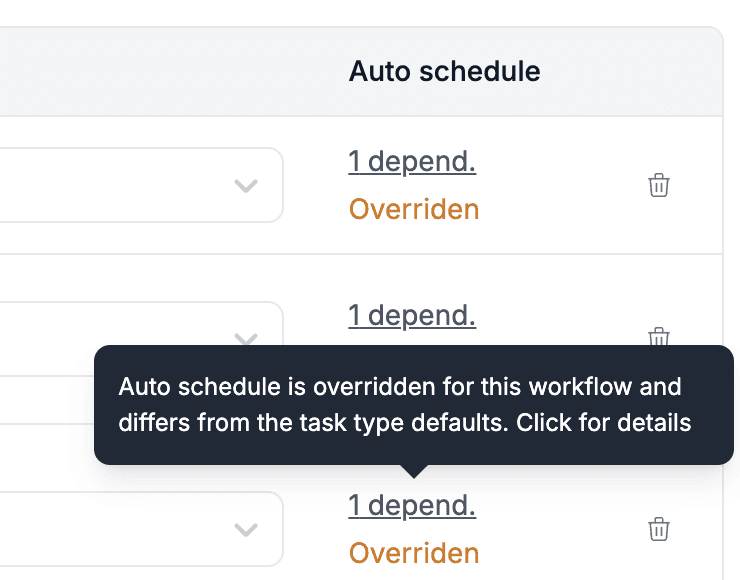
It is now possible to have different Workflows with different Auto-Schedule values. For example, you can have Fabrication Workflow 1 that schedules Cutting 4 days before Installation and Fabrication Workflow 2 that schedules it 2 days before.
To set this up, go to Settings > Tasks > Workflows and edit the desired workflow. You can either define a new auto-schedule configuration or override the existing one.
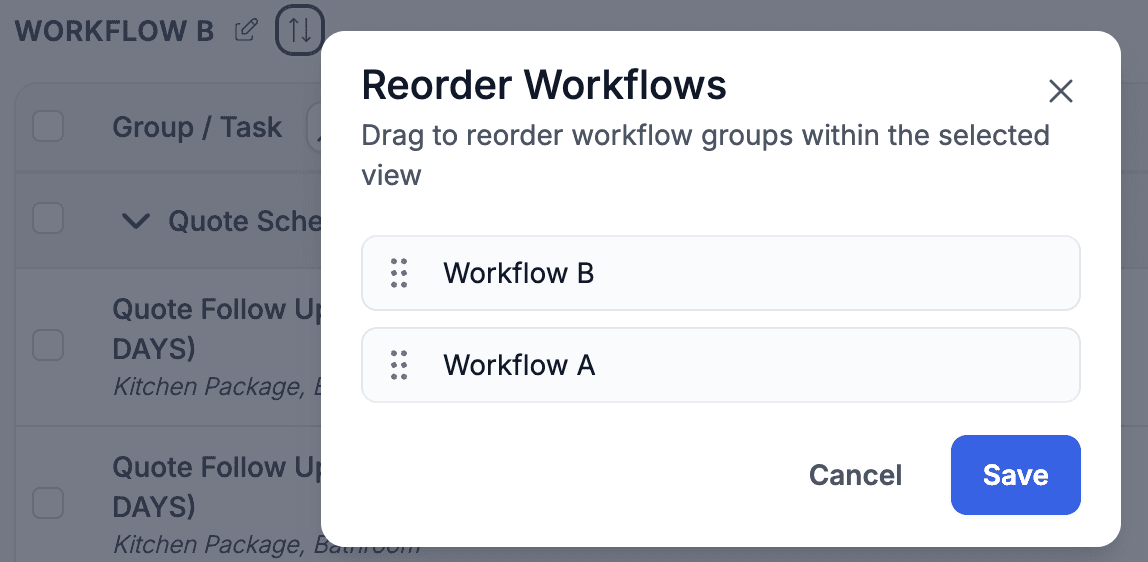
Workflows can now be rearranged. If a project contains multiple workflows, click the rearrange icon next to the workflow name to change their order.
Reports
Updated the Inventory Operations report design.
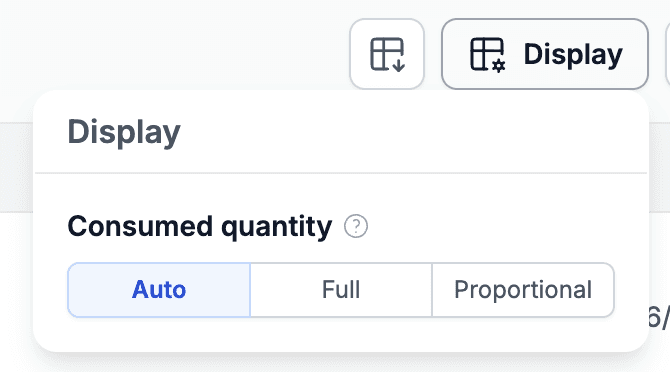
Sales – Detail by Item now calculates Consumed Quantity using the product's Remnant Cost Allocation Method.
For example, if a stone slab uses the Full allocation method, the consumed quantity will show the full slab size, while remnants will show 0, even though the physical consumed quantity may differ.
This mirrors the COGS calculation, keeping reporting consistent.
You can change this behavior using the new Display setting and choose how consumed quantity should be calculated.
Tasks
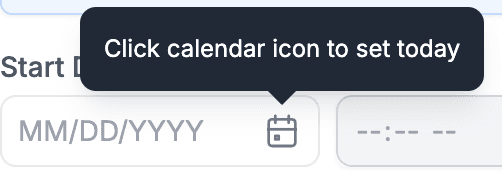
Clicking the date icon now sets the date to today, making it quicker to schedule tasks for the current day.
Leads
The Lead Export now includes a Quote Amount column showing the quote value.
Quotes
Added an option to generate Quote documents with images for selected line items (for example, to display a sink in the quote).
Contact your Stonify Account Manager to enable this feature.
Drawing
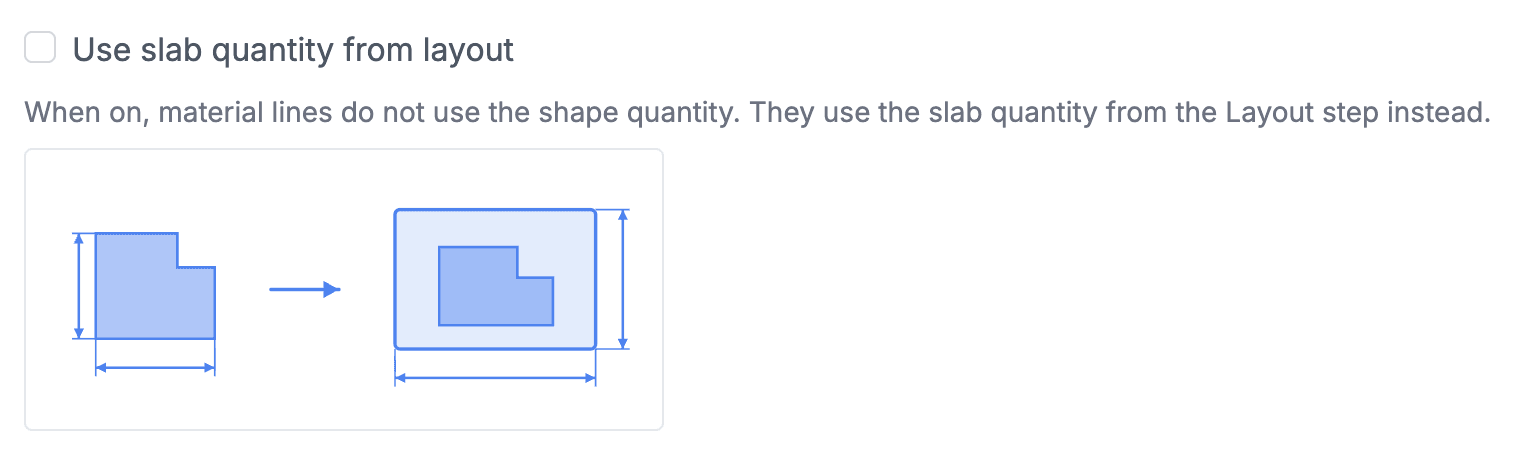
Added an option to use slab sizes instead of drawn shape areas when generating material lines. This allows material quantities to be based on the actual slabs allocated to the drawing.
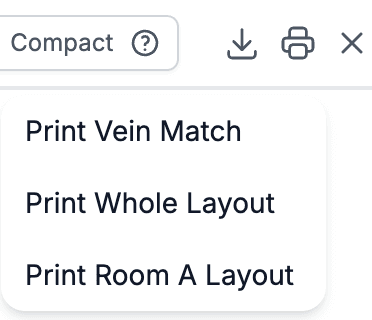
Added the ability to print the Vein Matching layout. Click the Print button in the top-right corner of the Vein Match screen and choose whether to print the entire layout or only selected packages.
Added support for generating dependent lines based on backsplash and waterfall lines. You can configure this in Drawing > Lines alongside the other line generation settings.