Release Notes v0.6.11 (Product Variations/SKUs, Nuvei Payment Processing)
Product SKUs (Variations)
Added support for Product SKUs (Variations). SKUs allow you to track one product across multiple variations.
Example: You may stock and sell the same product in 2cm and 3cm thicknesses or with different color variations.
The main advantage is that your high-level reporting stays product-based while inventory and detailed analytics can still track each variation separately.
This feature is optional, but every product now has a default SKU created automatically in the background.
To define SKUs, first configure which custom fields distinguish one SKU from another.
Example: You may define a Thickness custom field with values such as 1.2cm, 2cm, and 3cm.
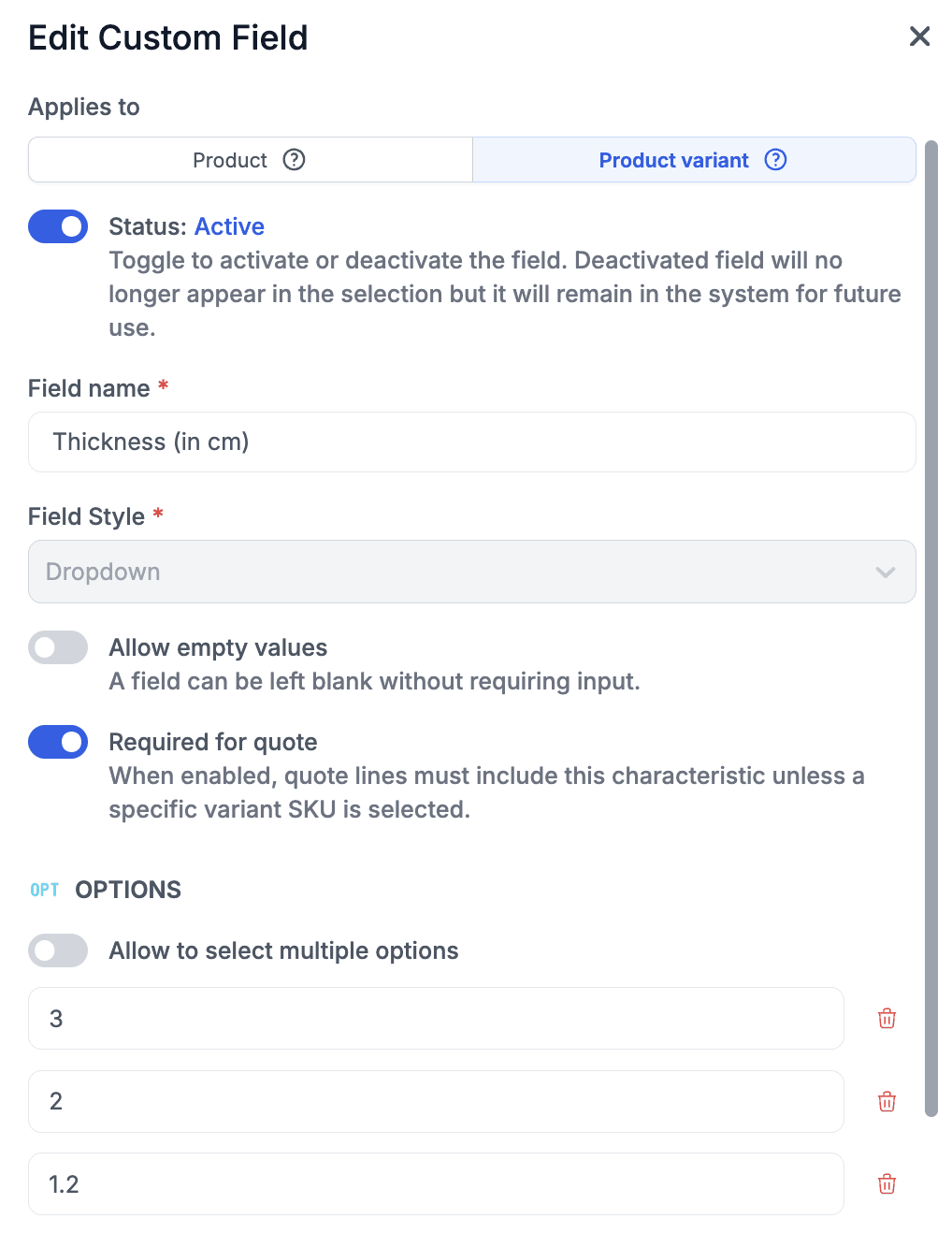
Once these fields are configured, you can define specific SKUs for products.
Example: The White Ornamental product may exist only in 2cm and 3cm variations, meaning every slab in inventory is tracked under one of those variations.
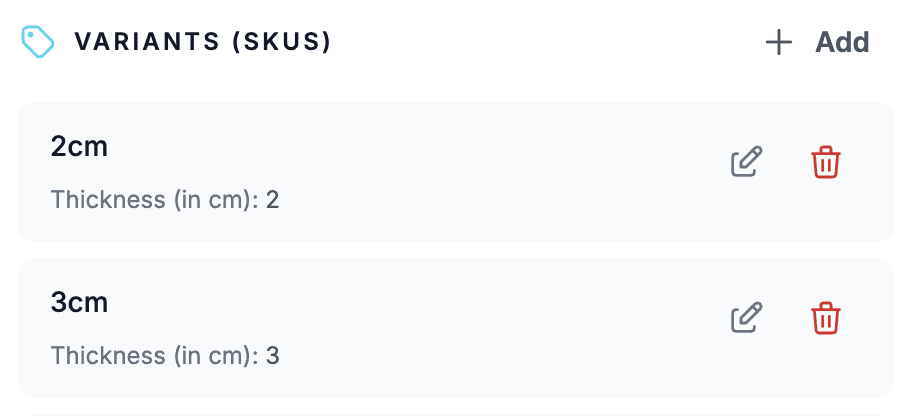
Each custom field can now be marked as required in Quotes. If enabled, any quote line using a product SKU that includes that field will require it to be filled in.
In the example above, this would force users to select the thickness for all quote lines using products with thickness variations.
Each SKU field can also be configured to be hidden for printing. If this is set, the field value would not be shown in the quote line.
This allows quotes to remain simple while inventory tracking stays detailed.
Example: A quote may show 36" Shaker Base Cabinet – Matte White, while the actual SKU tracked internally also includes hinge type or assembly method.
When adding products with SKUs into a Quote, you will now see a more advanced interface for selecting and using these SKU fields.
The old Product Custom Field functionality remains in place, but these fields are now connected to the product itself, independent of the SKU.
Example: a custom field like Fragile can remain product-level because all inventory variations of that product are fragile.
User Preferences
Added an option in User Preferences (profile icon) to keep task groups in Project Detail > Tasks collapsed by default. By default, all task groups remain expanded.
Sales Tax
Added a setting in Taxes to define whether sales tax should use the default billing address or the onsite address.
This default can also be overridden on the Quote/Project level.
Deposit Documents
Added a new Deposit document template.
The document looks similar to a Quote but includes the percentage that should be paid upfront.
Contact your Stonify Account Manager to enable this before it becomes self-service.
Task Auto-Schedule
Changed the auto-scheduling logic so tasks without packages now affect only other tasks without packages.
Previously, tasks without packages also affected tasks with packages to simplify scheduling for smaller projects.
Nuvei Integration (Payment Processing)
Added integration with Nuvei for payment processing.
To learn more, negotiate fees, or enable the integration, contact your Stonify Account Manager.
The setup screen is currently somewhat technical, but we plan to improve the onboarding experience.
This integration allows seamless payment collection from customers, similar to Stripe integration.
Invoices include a payment link and QR code that customers can use to pay.
You can configure which project invoices automatically generate payment links in Payment Links settings.
Payment amount is configurable, allowing customers to pay invoices in multiple parts.
These are tracked as Payment Attempts, visible in the Payment Attempts screen.
Payments take time to settle (when funds arrive in your bank account).
Settlements happen automatically in the background, but you can monitor them from the Payment Attempts screen.
Make sure to configure:
Payment Processing Clearing Account — used to record payments processed through Nuvei
Payment Processor Adjustment Account — used to record processing/platform fees
Drawing
Added the ability to export and import Drawing settings (available in the bottom section of the Settings navigation panel).
This is related to data import/export and is not part of day-to-day drawing usage.