Release notes v0.5.95 (Jan 14)
Jan 14, 2026
Drawing
Area and length values from the drawing are now rounded to 2 decimal places. For example, instead of
46.6666667, you’ll see46.67.Each cutout type is now represented visually in the drawing. For example, an oval cutout is shown as an oval instead of a rectangle.
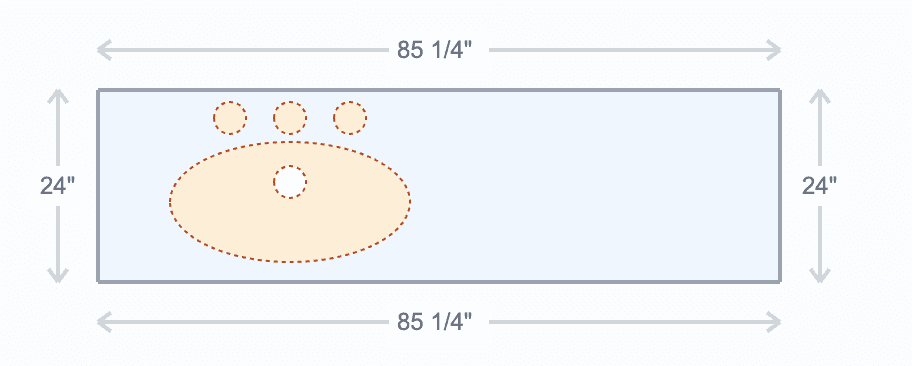
Added two more area calculation modes. You can visually see how each mode calculates the area. The new options are explained in the settings, but it’s best to try them yourself.
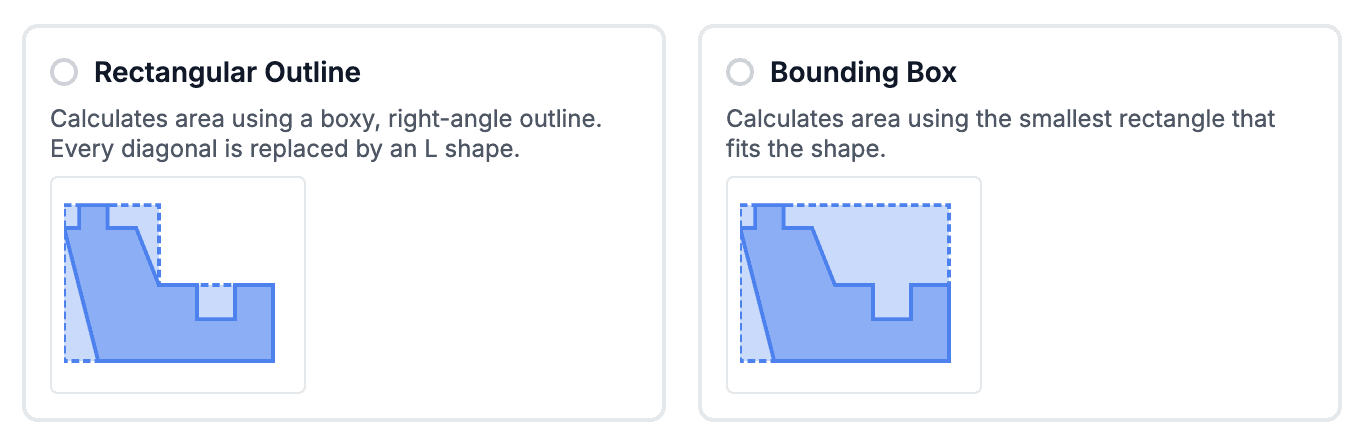
When you select a shape on the drawing canvas, you can click the three-dots menu at the top and choose Show Area Calculation. A popup appears showing how the area is calculated for that shape using different modes.
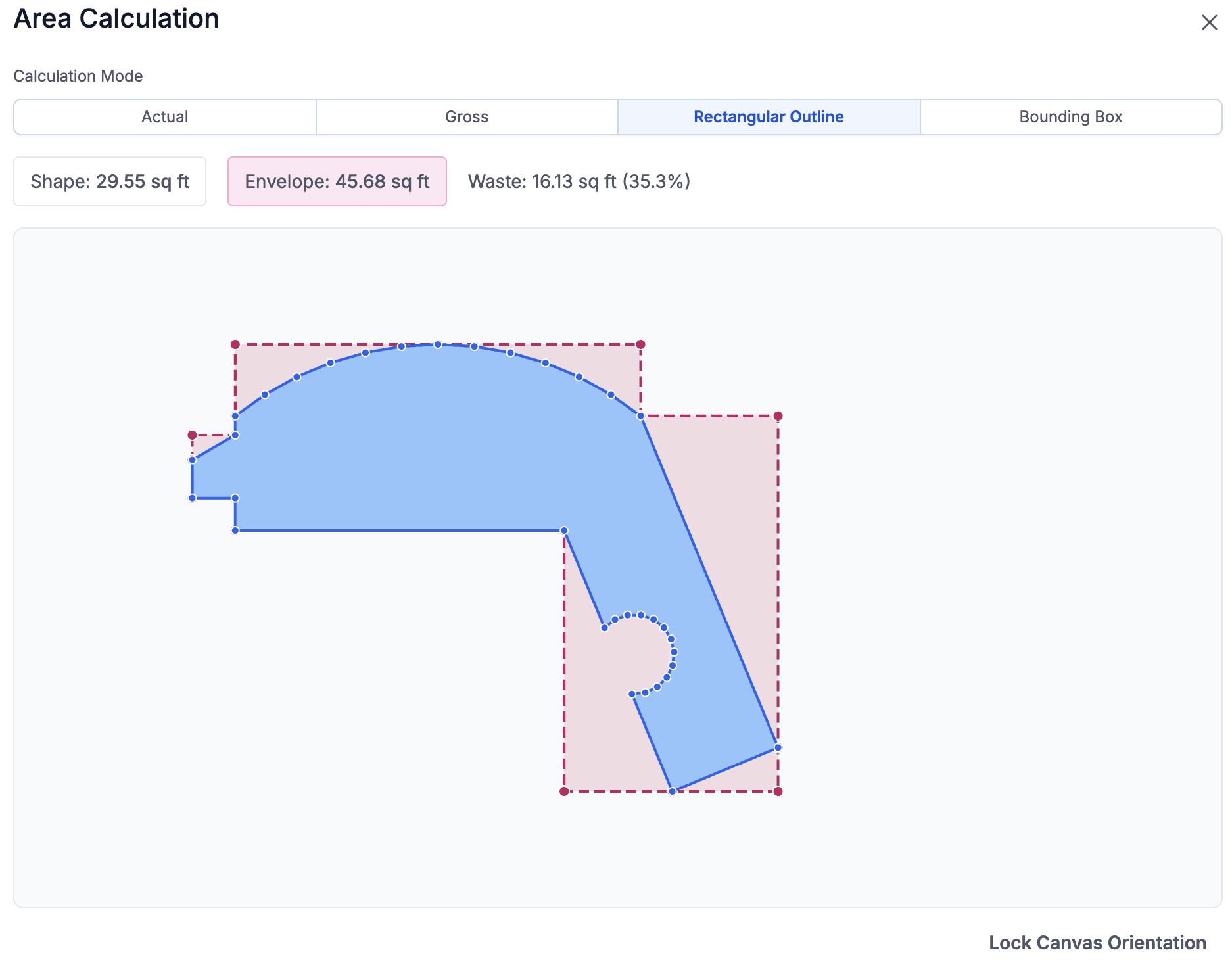
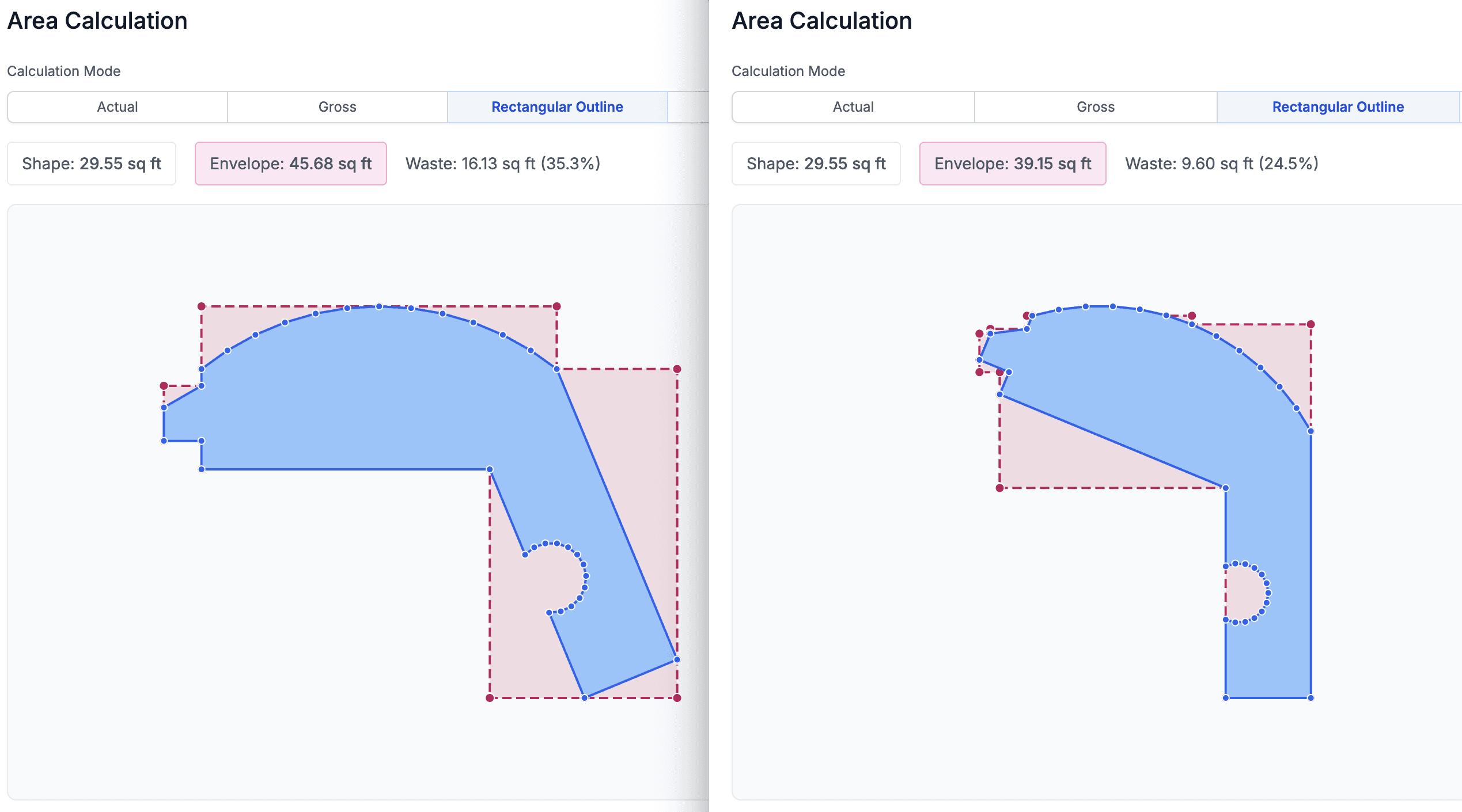
Area calculation always uses the base rotation (0°) of the shape. If you ever want to change that for a specific shape (which you usually don’t need), you can do so in this popup by clicking Lock Canvas Orientation. See the images below for how changing the base rotation affects the calculation.
You will also notice a simple waste calculation. This is currently informational only, but we plan to introduce more advanced controls in the future to give clearer insight into waste and remnant usage.
The SF shown in the Materials sidebar and the top summary is still sourced from a legacy area property, while the correct SF comes from the new Area Calculation Mode modal and the generated quote lines. We will correct this soon.
Users
Added group management in Settings.
Project
Project custom fields are now visible when creating a new Quote or Project, making it easier to set them immediately.
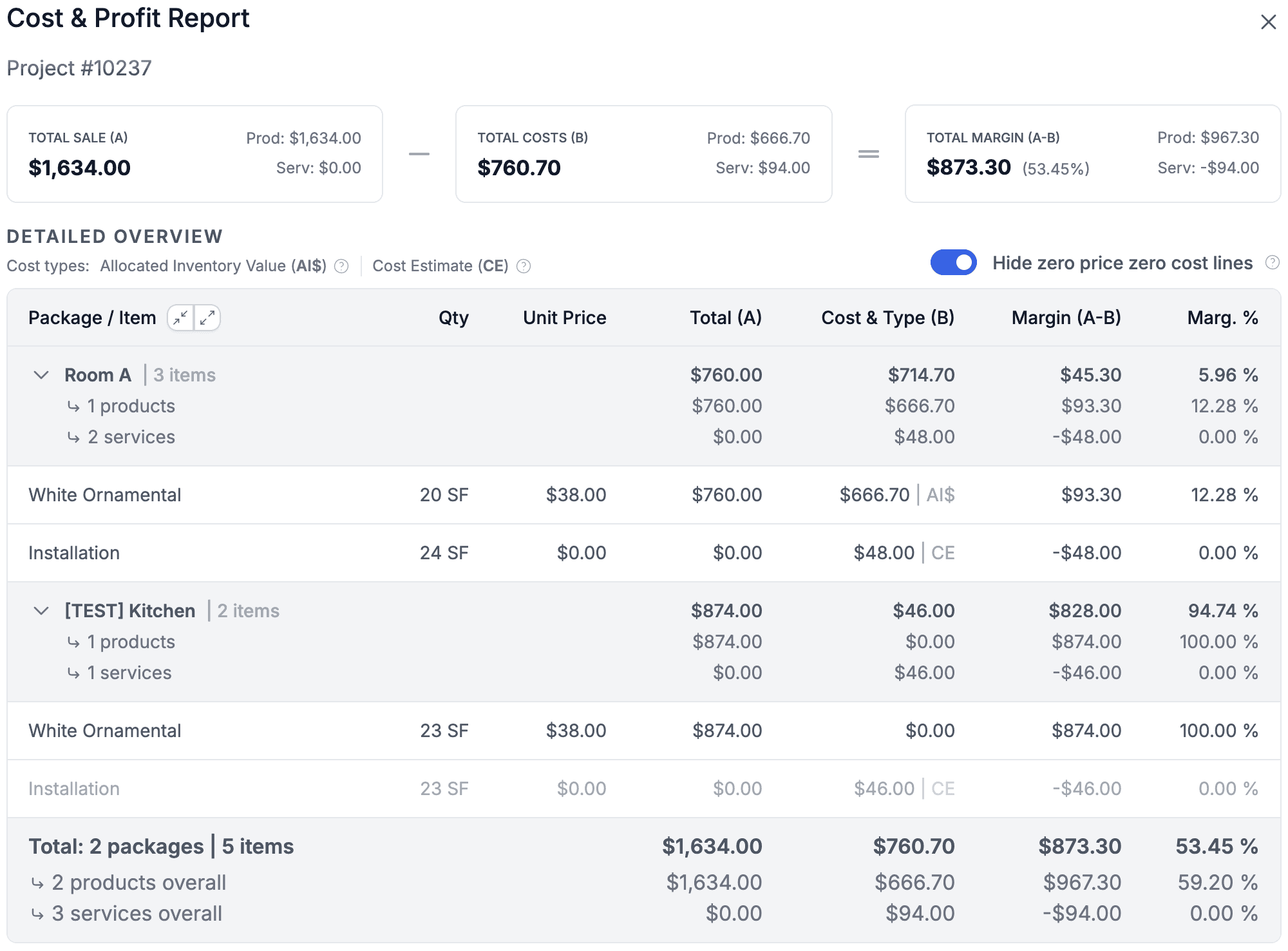
Added a new option to view Project Profitability. You can access it from the Project Detail by clicking Actions → Cost & Profit Report.
Revenue in the report is taken from the quote/deal lines.Product costs are calculated using the landed cost of inventory that is either held for the quote or allocated in the deal.
Service costs are calculated using the Cost Estimate property on the service.To view this report, the user must have permission to read sell prices and costs.
Sales
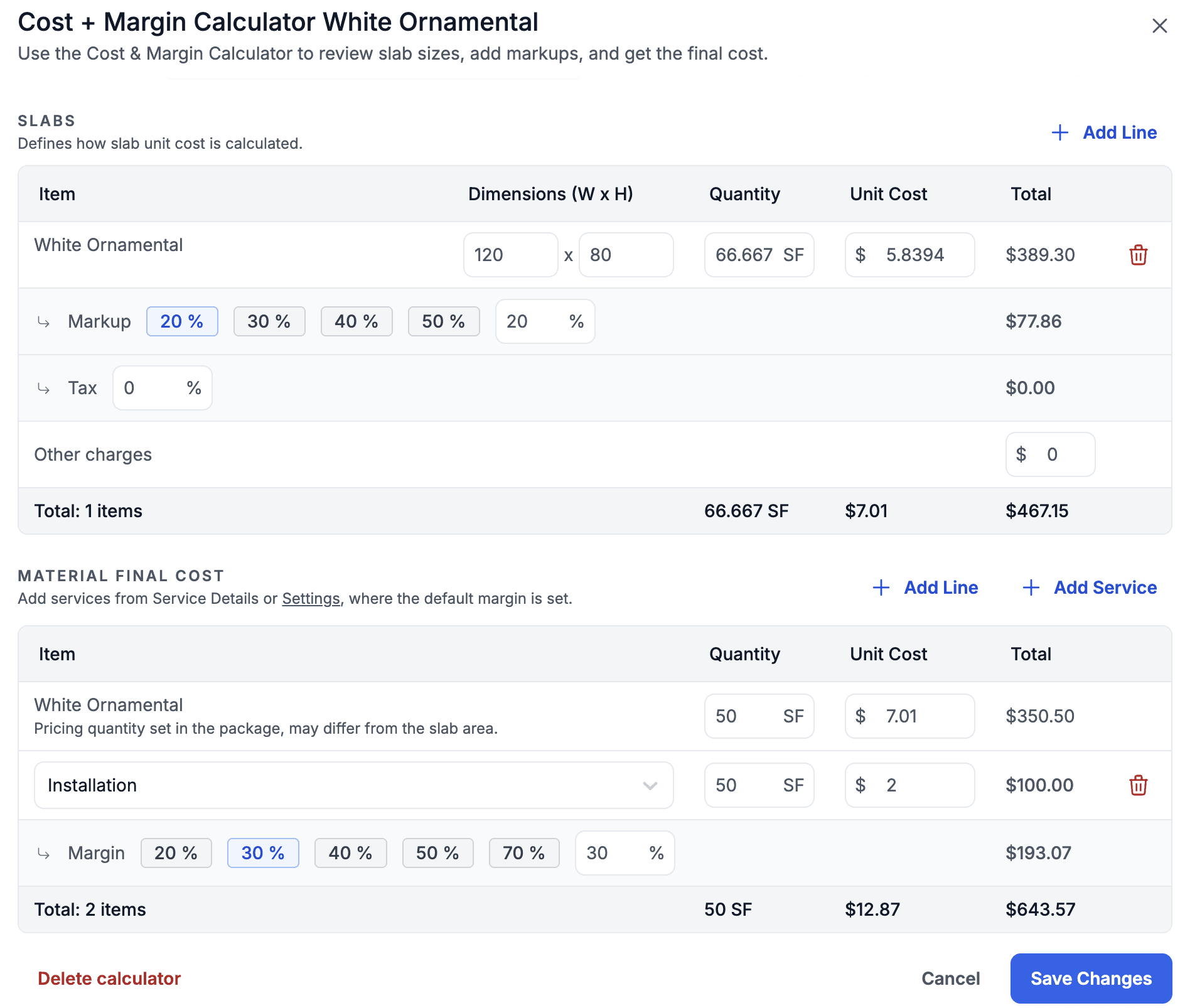
Added a Margin Calculator for slab lines. When working on a Quote or Deal, you can open a calculator to set material costs, apply markup, add additional charges, and reach the margin you want. This is a simple way to price jobs per square foot. Click the calculator icon next to the material price to open it.
The Quote module is available again and visible in the left menu. You can use filters to narrow down specific quotes. This is one of the first steps toward making the Lead → Quote → Deal flow cleaner and smoother.
Inventory
Added a new Consigned Inventory report. This report shows all consigned inventory aged over time, making it easy to see items that have been sitting in your warehouse for a long time.
Fixed a bug where deleting a PO line that contained a Special Order did not unlink the Special Order.
Speed Label integration
You can integrate SpeedLabel with Stonify.
You generate an API token in Settings > Integrations > SpeedLabel, optionally set an expiration for security, and configure which fields should be visible to SpeedLabel (from projects, package lines, or tasks).
Finally, contact SpeedLabel to add the token to their app. We’re working with SpeedLabel to make this step easier in the future.
Products & Services
Added Created and Modified fields to the lists, and you can now sort by these columns—making it easy to see, for example, which products were edited most recently.
Notifications
You can enable email notifications when a task changes and your email is included in the Notify Users/Groups list on the task. Enable this in Profile > Notifications.