Release notes v0.5.92 (Dec 3)
Navigation
There is now a Preferences tab in your profile.
You can choose whether a submenu with submodules appears when you hover over a module icon in the left menu (this is on by default).
You can also set a default submodule for each module. This decides what opens when you click a module icon.
Example: you can set Expenses as the default submodule that opens when you click the Banking icon.

Tasks
When tasks in a project are grouped by workflow, a new “+ Workflow” action appears above the table. This lets you quickly add more tasks into an existing workflow.
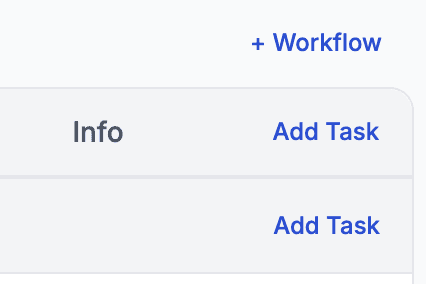
Example: A workflow may represent a phase of a project—initially created from a Marketing workflow, but later you may add a Manufacturing workflow once the quote is accepted.
When creating a workflow, you can now rename the default workflow name immediately, saving an extra step in naming workflows the way you want.
Consignment Inventory
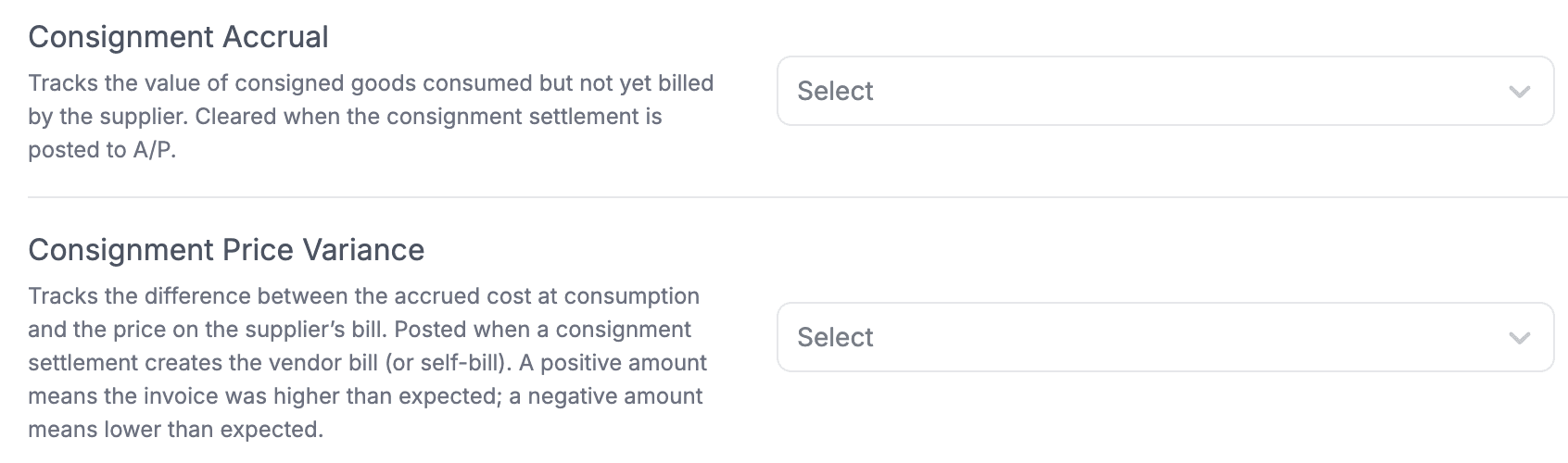
You can now consign inventory — a simple way to track products that remain owned by the supplier until you consume or sell them.
To use consignment, set up the default consignment account in Finance > Accounts.
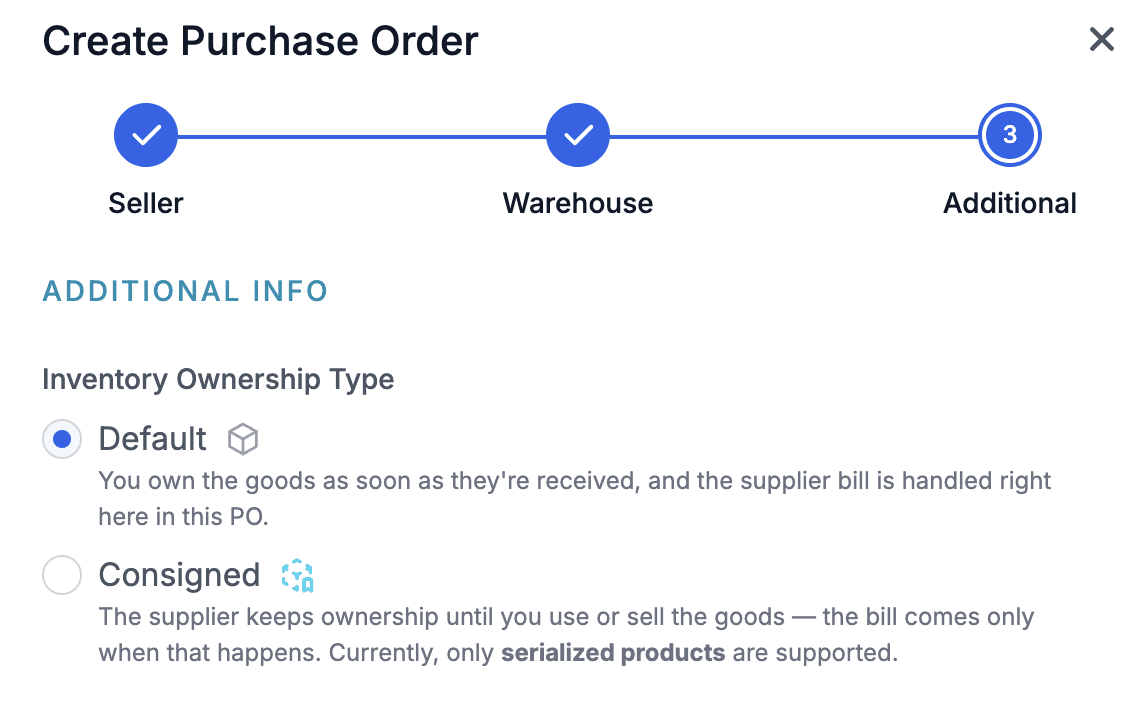
When creating a new Purchase Order, you can now choose for it to be consigned.
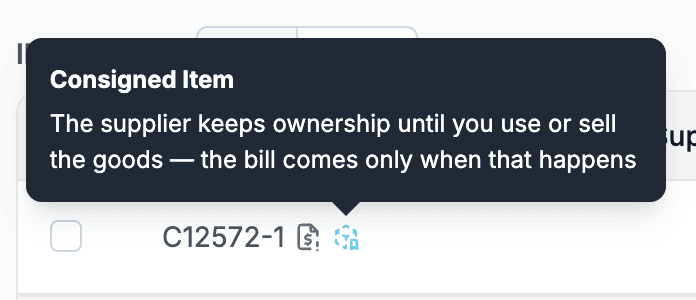
Consigned inventory has a special symbol, making it easy to distinguish from regular inventory.
When consigned inventory is consumed (sold, written off, etc.), it appears in the Consigned Inventory Bills report. This report lists all consumed consigned inventory so you can easily settle bills with suppliers.
Inventory
Added a simple Internal Consumption report, allowing you to see which inventory items were consumed internally.
Documents
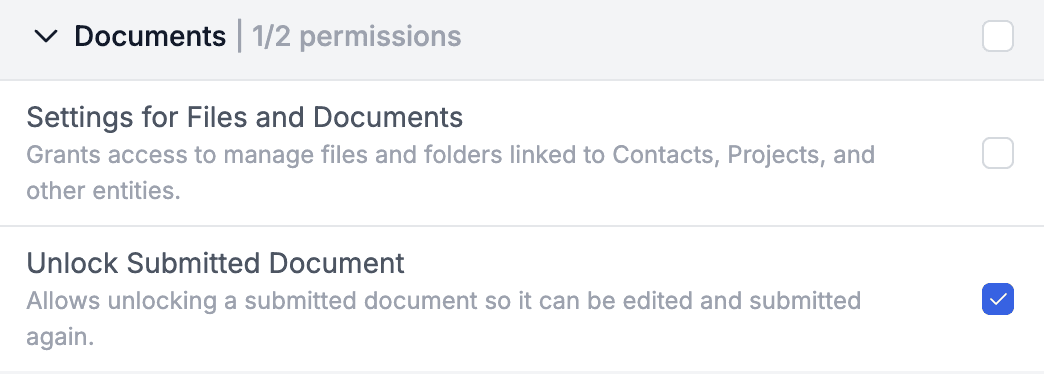
Added a new permission that allows users to unlock submitted documents.This should be used carefully because it bypasses document immutability, but it allows updating or adding items—such as checklists—after submission.
Logistics
Introduced a new heuristic to determine the status of trips in the Logistics app (used primarily by installers):
If there is one service, behavior remains the same as before.
If there are multiple services, the system considers only those not marked as “None.”
If any service is marked as Partial Delivery, the whole trip is shown as Incomplete.
If all are Full, the trip is shown as Completed.
This resolves cases where a person acts as both Templater and Installer—for example, if templating is completed on the first trip, it will now correctly show as Completed rather than Incomplete.
Calendar
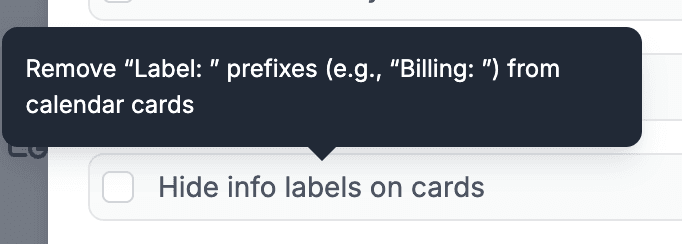
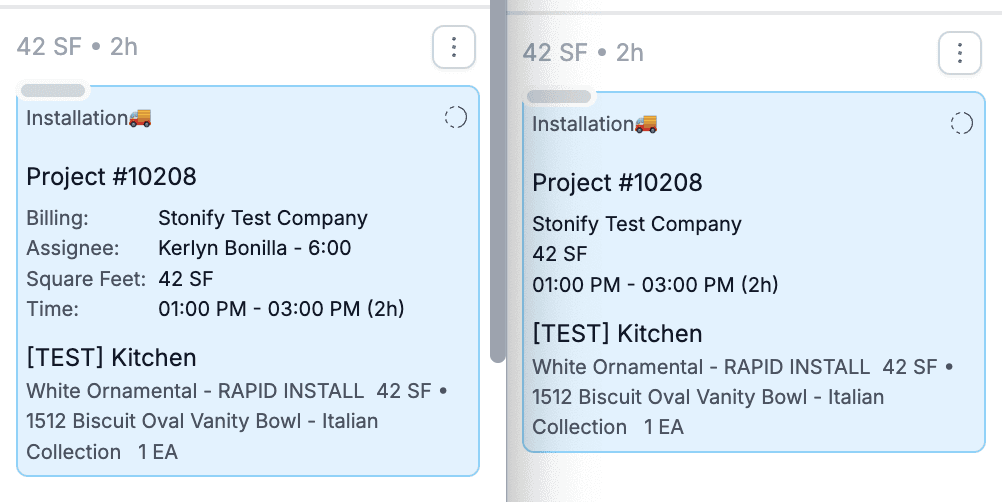
Added a setting to hide calendar card labels. This makes cards more compact (see the image: left = default, right = new option).
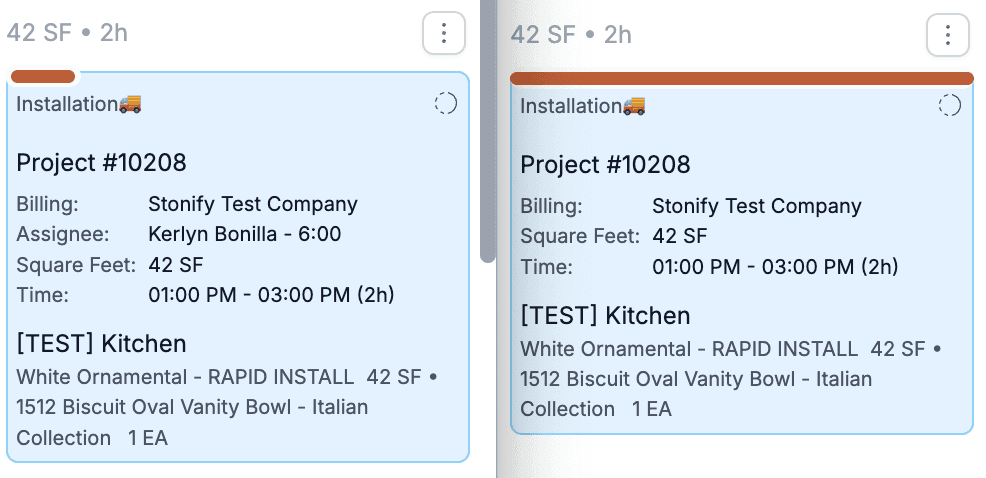
Added a setting to adjust the width of the status indicator on cards. You can now set it to full width (see the image: default vs. new option).

Custom Views
Added Invoiced Amount as a field in Custom Views.
This lets you see how much has been invoiced in nominal dollars, which differs from invoiced percentage.
Example: A project has three lines:
100 × $10 = $1000
50 × $10 = $500
50 × –$10 = –$500
Total = $1000 (billable)
If you invoice the first line ($1000), the percentage is 50% (100/200), but the invoiced amount is $1000.