Release Notes v0.6.4 (Discounts, Balance Due in Installer App, Sink & Cutout Images)

Discounts

  • We’re introducing a more advanced Discounts feature. Discounts existed before, but this new system is much more powerful.
    This is the initial release - upcoming releases will add audit tracking for Deal discount changes (added to the changelog), default discounts for customers, opt-out options for specific products/services, and reporting.

  • To set up discounts, go to Settings > Finance > Discounts.
    You need the Manage Discounts permission (under the Discounts permission group).

  • Step 1: Choose how discounts are handled in accounting
    You have two options:

    • Reduce Revenue - recommended and simpler.
      Example: $100 revenue with a 10% discount results in $90 revenue.

    • Post Discount as a Separate Entry - keeps original revenue and posts the discount separately.
      Example: $100 revenue stays as-is, and a separate –$10 entry is posted to a selected account (e.g., Discounts).

  • Step 2: Define discount services

    • Select which services in your catalog represent discounts.

    • Add them to the Discount Catalog.

    • Define how they behave:

      • Inline discount - manually added as a line with a specific amount

      • Document % discount - applies a percentage discount to the entire document (e.g., –10%)

  • Once the discount catalog is set up, configure permissions:

    • Use Discounts - can apply percentage discounts but cannot modify the amount (e.g., apply 10% but not change it to 12%). Typical for sales reps.

    • Edit Discounts - can apply and modify discount amounts. Typical for sales managers.

  • Using discounts

    • Discounts can be applied to standalone invoices or as part of the sales flow (e.g., starting from a Quote).

    • In both cases, use the “Add % Discount” option in the footer.

  • You can choose whether the discount is applied before or after tax.

    • In most cases, before tax should be used unless regulations require otherwise.

  • You can control which lines are discounted by selecting checkboxes.

    • By default, all lines are included once a discount is added.

    • Additional customization options will be added in future releases (as mentioned above).

    • A summary at the bottom shows the scope (which packages the discount applies to).

  • The Quote document can be customized to include a column for the original price (with an optional custom name). Contact your Stonify account manager to set up this customization.

Inventory

  • Added support for a default slab size. You can set this in the product detail.

  • These default values are used in:

    • Drawing — when selecting a custom slab for the product, dimensions are automatically pre-filled

    • Purchase Orders — when ordering material

    • Margin Calculator — when adding slab sizes

Logistics

  • Added a new setting that, when enabled, shows the balance due for projects in the Installer app.

Drawing

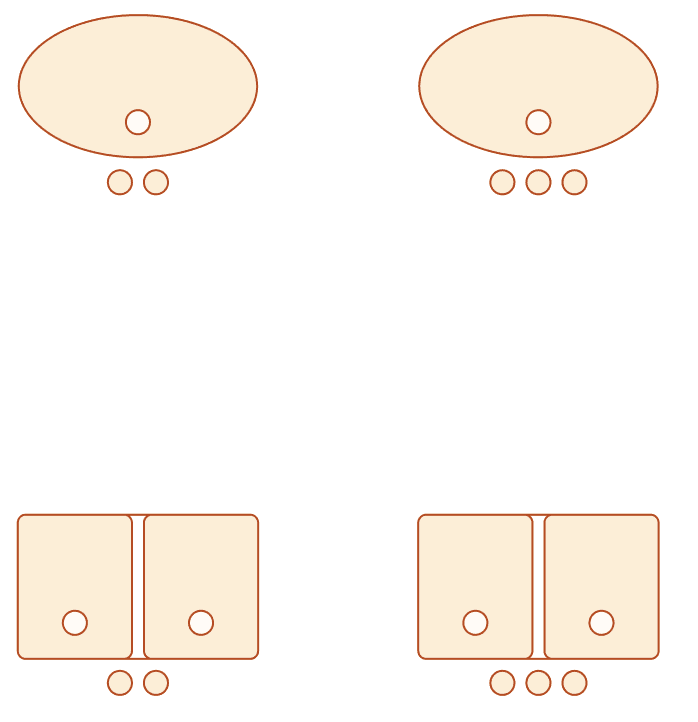
  • Each cutout type now has its own image.
  • Added a new Duplicate option for custom slabs, allowing you to quickly create multiple slabs of the same size.